
Organise · All guides
Organise
Organise screenshots on your Mac and search what's in them
Drop your screenshots into Cavvi, sort them into collections, and find any of them by describing what's on it.
- Mac
Screenshots land on the Desktop with names like "Screenshot 2026-10-31 at 21.04.12" and are hard to find again. Cavvi keeps them as pictures you can search, filter and sort.
Bring them in
- Open the folder with your screenshots in Finder.
- Select them and drag them onto Cavvi's window. Up to 50 at a time.
To add one as you take it, copy it to the clipboard with ⌃⇧⌘4, then press ⌘V in Cavvi.
Find them by what's on them
With your own AI key, search by describing a screenshot, such as "pricing table with three plans" or "flight confirmation". See Search your library.
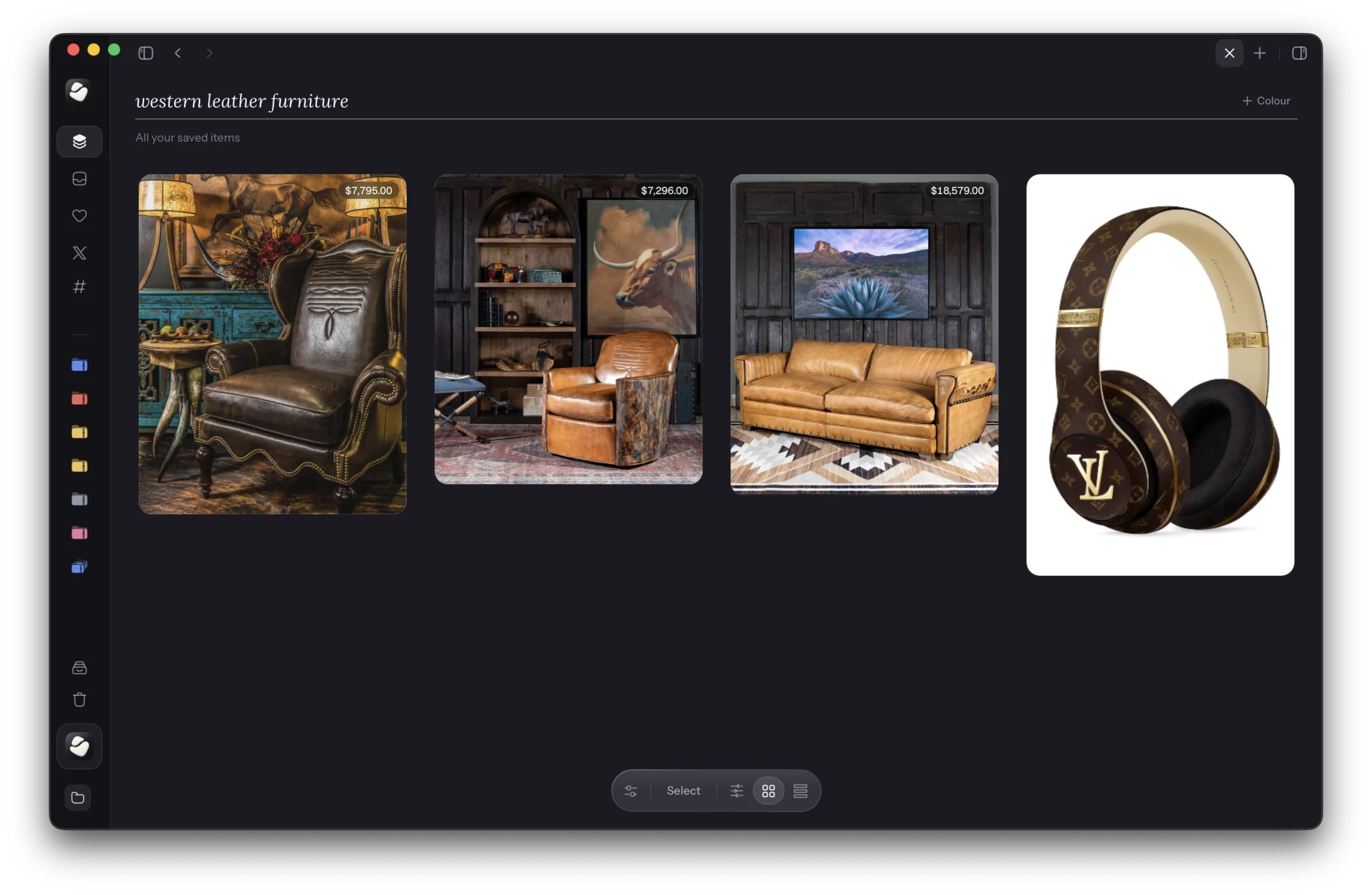
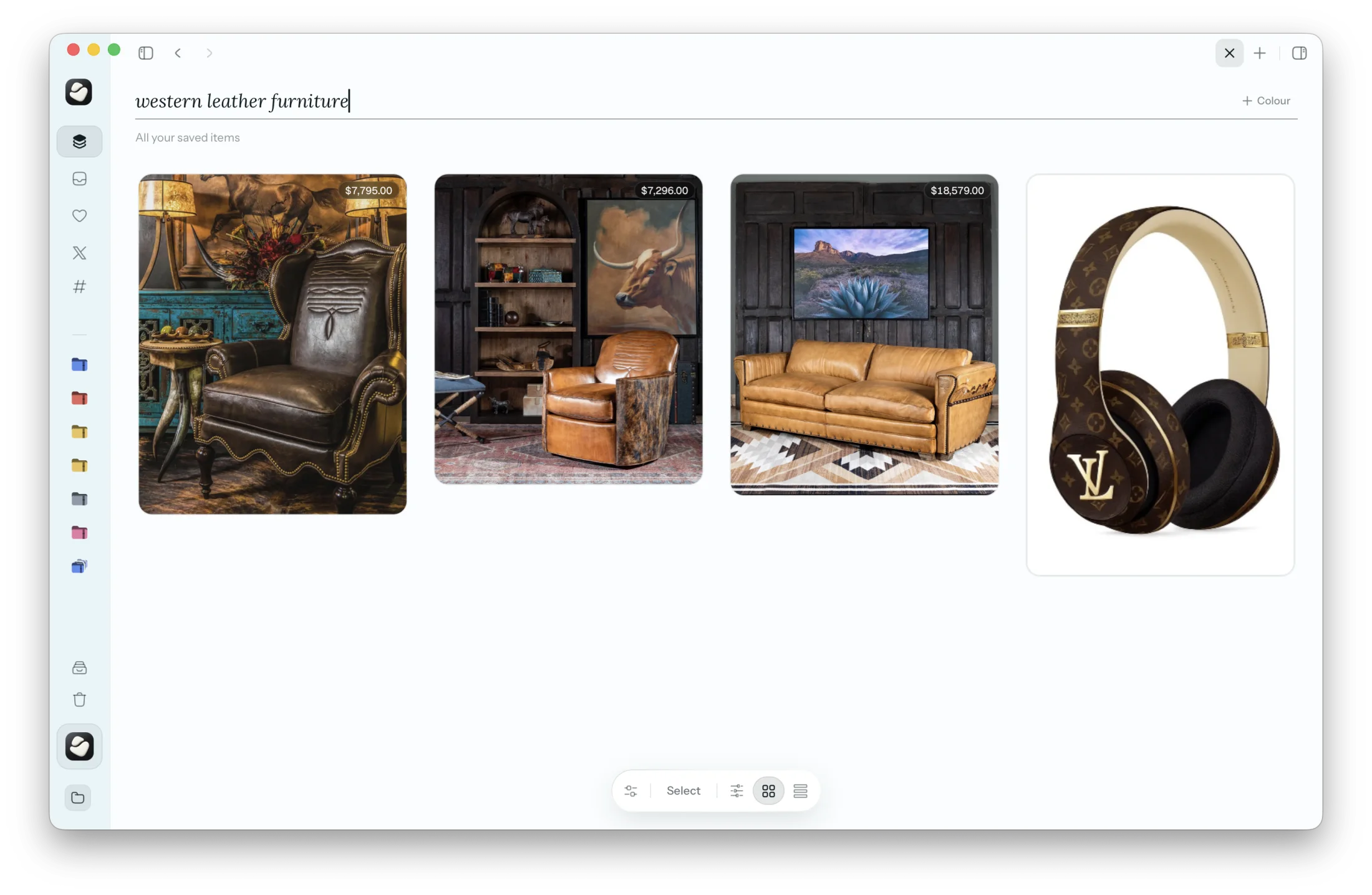
Sort and filter them
- Add them to collections, such as Receipts or Design references.
- Under Filters, choose Images, a colour, or when you saved them.
Questions
Are my screenshots uploaded anywhere?
They're kept in your library folder on your Mac. With AI turned on, a picture is sent to your own AI provider to describe it, using your key.
Does Cavvi delete the originals?
No. Cavvi keeps its own copy. Delete the originals from your Desktop when you're ready.