Sync and storage · All guides
Sync and storage
Sync your library across Mac, iPhone and iPad
Keep your Mac, iPhone and iPad in step through your own iCloud Drive or Google Drive.
- Mac
- iPhone
- iPad
- Settings › Sync
Cavvi syncs through your own cloud. Your library never passes through Cavvi's servers, and sync is free.
Choose a cloud
- iCloud works on Mac, iPhone and iPad with your Apple ID. There's nothing to sign in to.
- Google Drive works on Mac, iPhone and iPad with your Google account.
Every device has to use the same one.
On your Mac
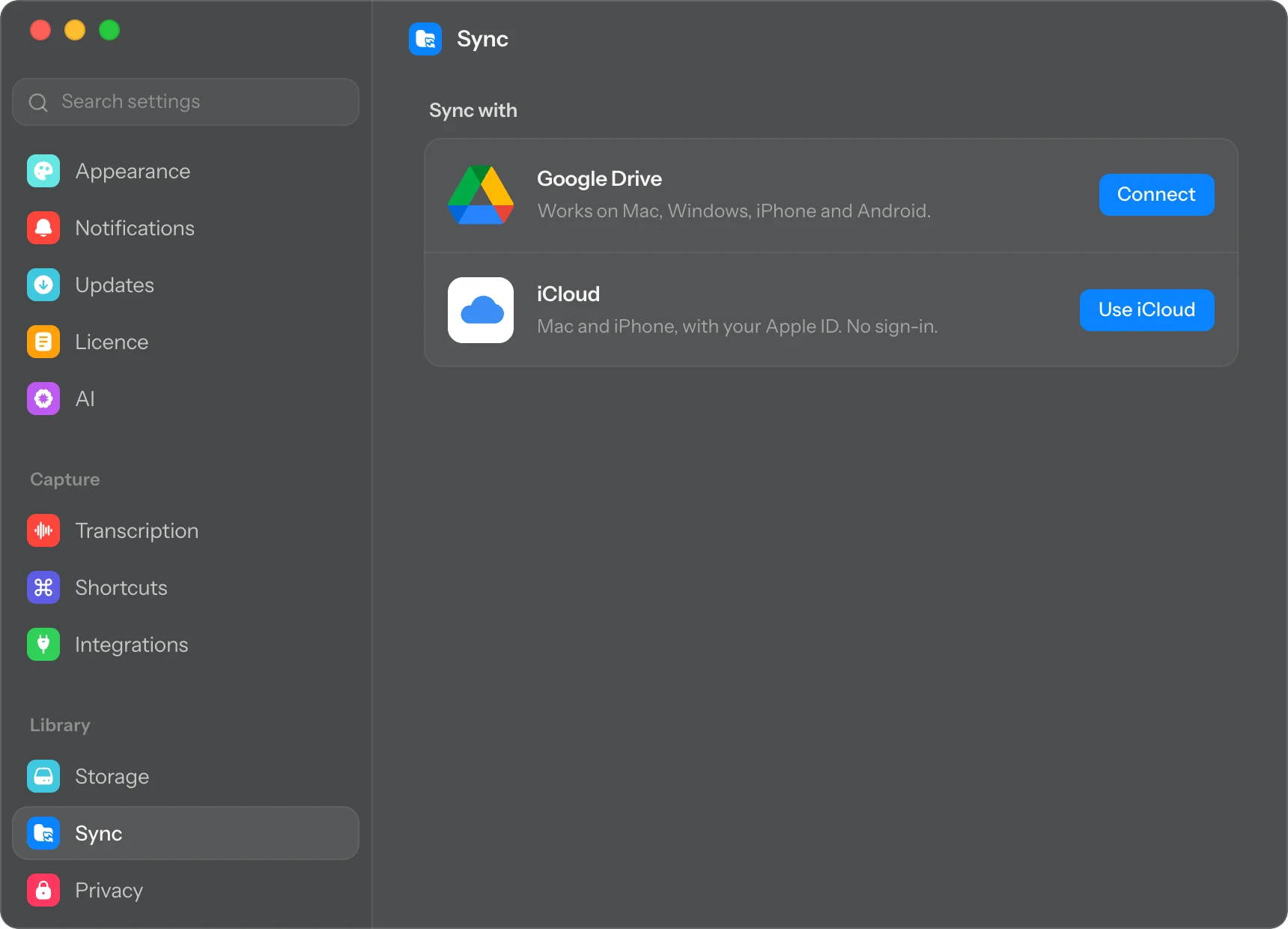
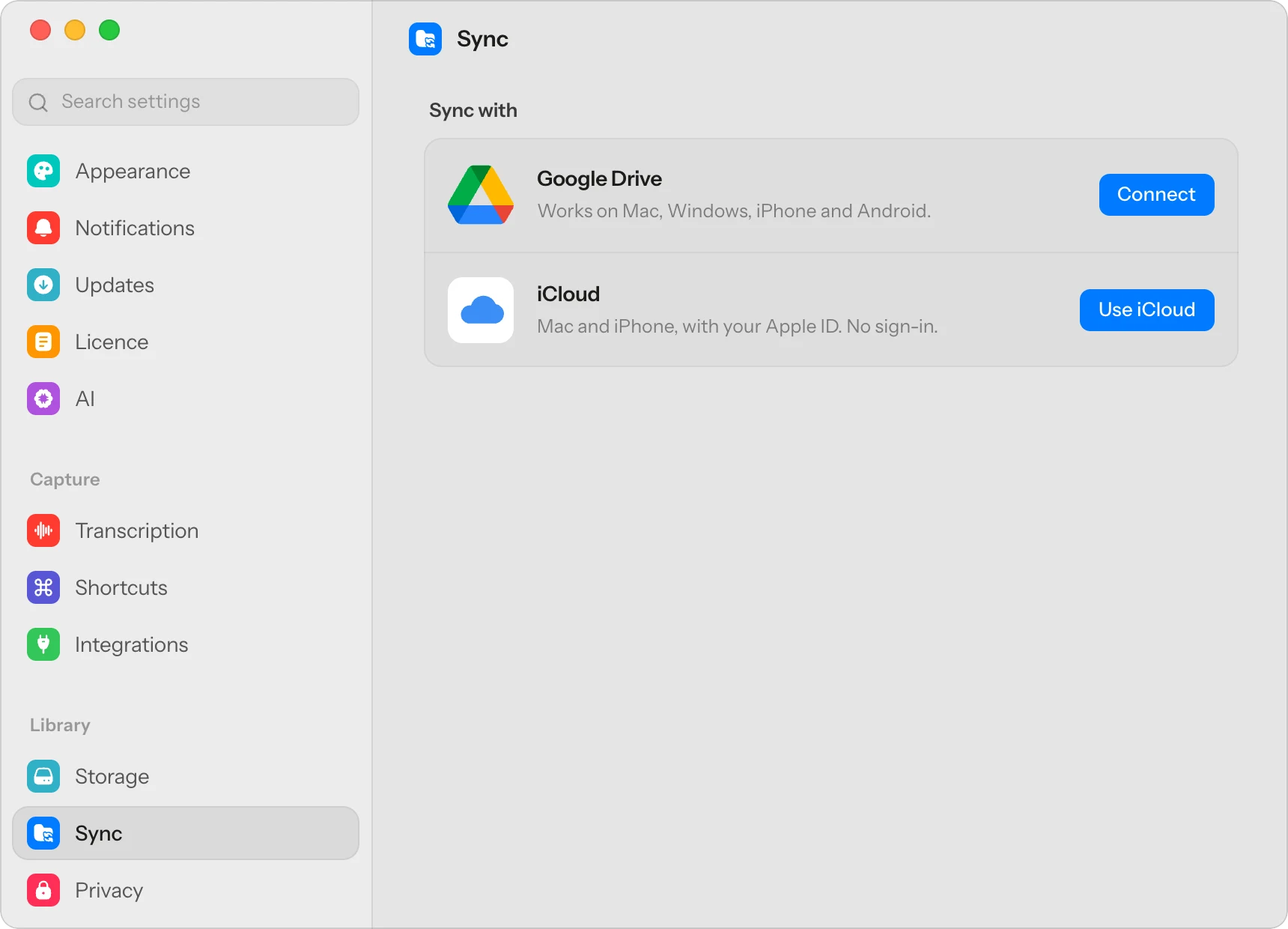
- Press
⌘,to open Settings and choose Sync. - Click Use iCloud. Or click Connect under Google Drive and sign in to Google in your browser.
Sync starts straight away. The bottom of Cavvi's sidebar shows when your library last synced.
On your phone
- Tap the gear to open Settings, then tap Sync.
- Tap Turn on under iCloud. Or tap Connect under Google Drive and sign in.
When it syncs
Cavvi syncs when it opens, a few seconds after each change, and every couple of minutes while it's open. To sync right away, click Sync now in Settings › Sync.
Your saves, their files, your collections and your tags all sync. Each device keeps its own settings, such as its theme and AI key.
Questions
Why is iCloud greyed out?
iCloud Drive is off. On a Mac, turn it on in System Settings, under your name › iCloud. On an iPhone or iPad, open the Settings app and tap your name, then iCloud.
Can I switch clouds?
Yes. In Settings › Sync, click Switch under the other cloud. Switch on every device, so they all use the same one.
What does Stop syncing do?
It pauses sync on that device. You stay signed in, and nothing is deleted.
Does it work offline?
Yes. Changes wait on the device and sync when it's back online.
Where does my library go in Google Drive?
Into a folder called Cavvi. Cavvi can only see the files it makes, not the rest of your Drive.