
AI · All guides
AI
Turn on AI with your own key
Add an OpenAI or OpenRouter key for summaries, search by meaning and collection suggestions.
- Mac
- iPhone
- iPad
- Settings › AI
Cavvi's AI runs on your own OpenAI or OpenRouter account. Requests go straight from your device to them, and they bill you for what you use. It's optional: everything else in Cavvi works without it.
What it adds
- Pages kept as what they are: articles, recipes, products and books, rather than plain links.
- A short summary on articles, recipes, products and books.
- Search by meaning, so "curved building" finds the photo.
- Collection suggestions and tags for each save.
Add your key on the Mac
- Create a key with OpenAI or OpenRouter.
- In Cavvi, press
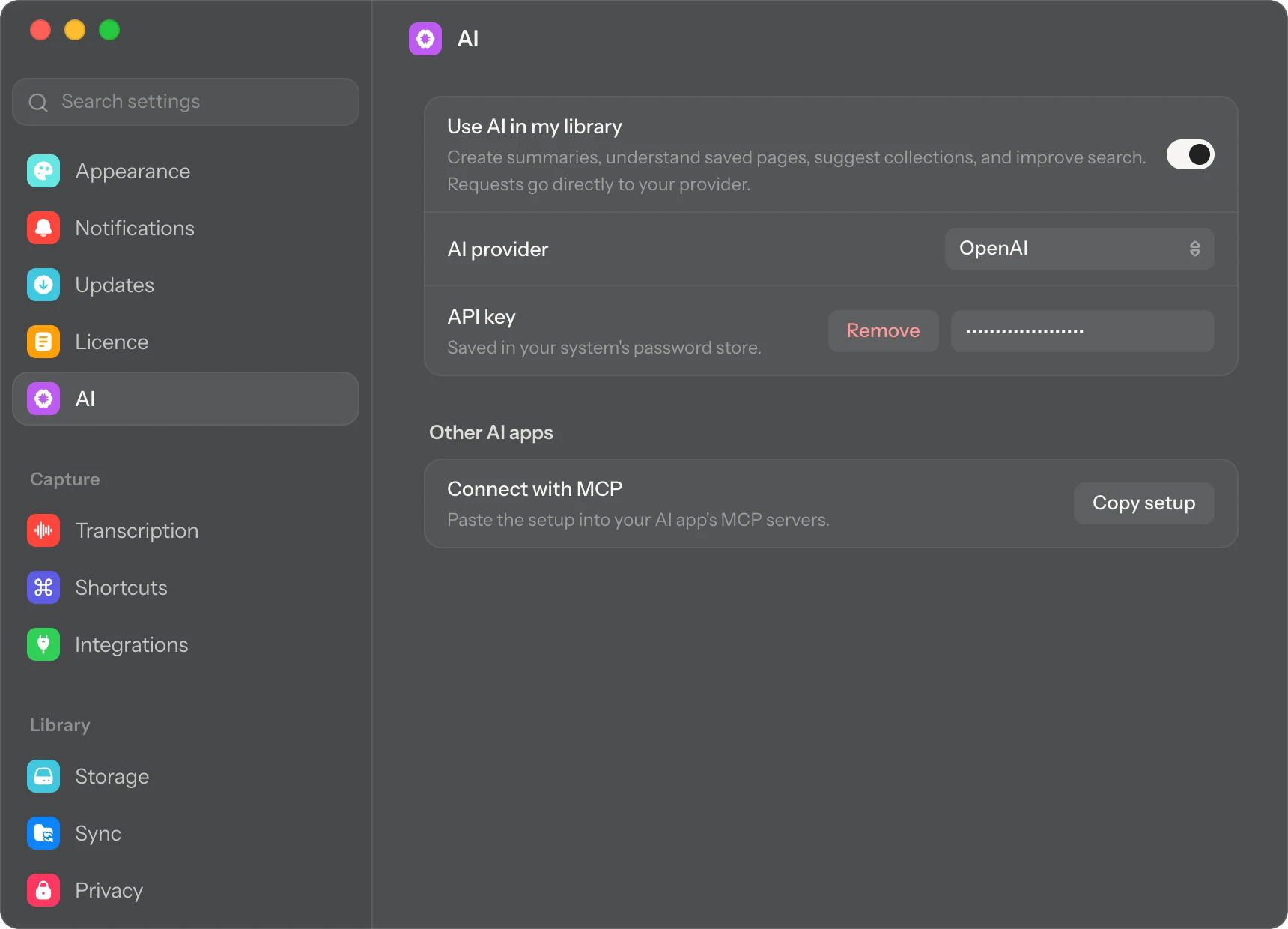
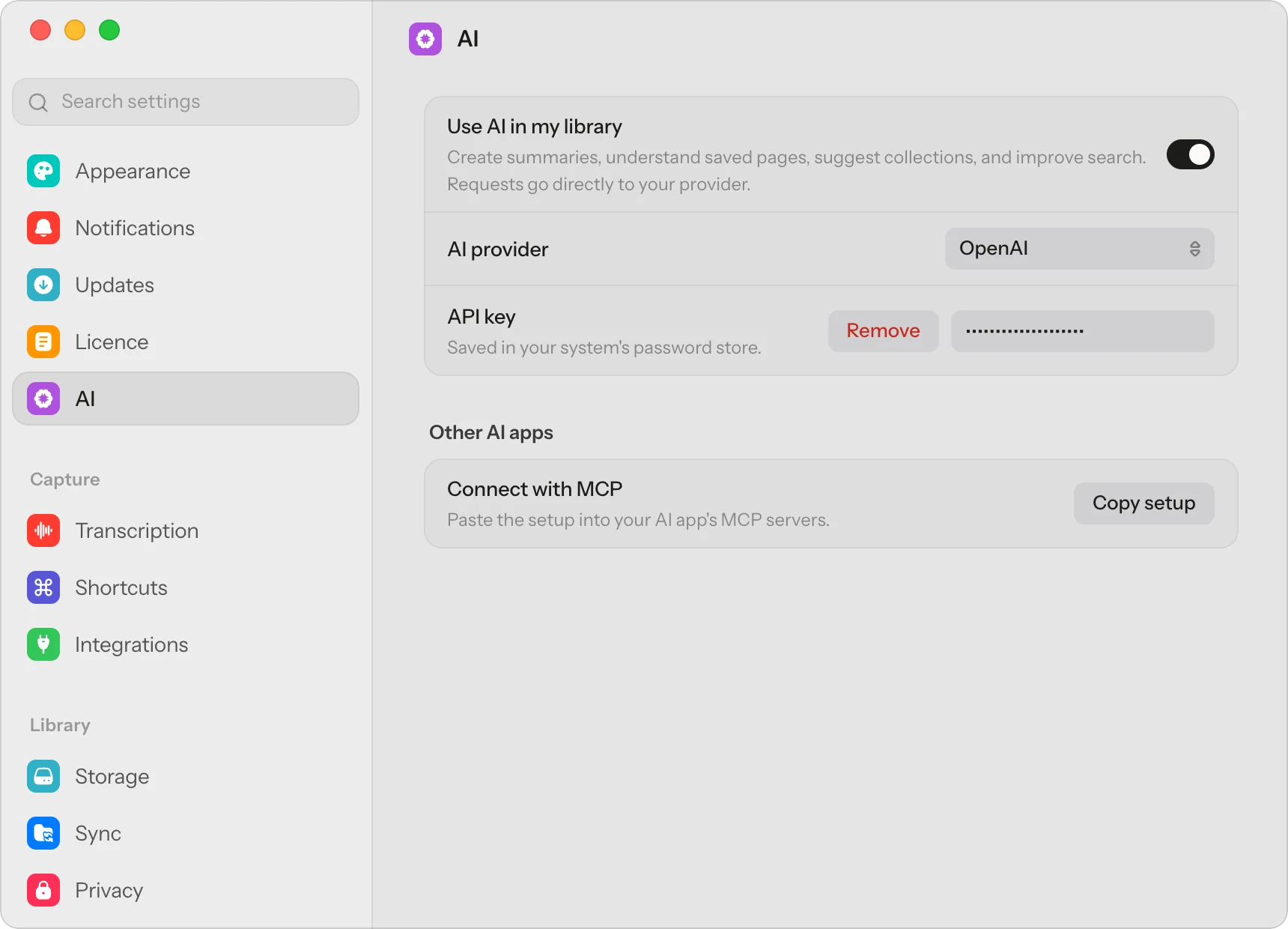
⌘,to open Settings and choose AI. - Next to AI provider, choose OpenAI or OpenRouter.
- Paste your key into API key and press Return.
Cavvi tries the key once before keeping it. When it says Key works, AI is on. The key is kept in your Mac's password store.
Add it on your phone
Each device keeps its own key. On your phone, tap the gear to open Settings, tap AI, and add your key the same way.
Improve links you saved earlier
Links saved before you added a key can catch up.
- Click Improve… under Existing links in Settings › AI.
- Click Improve all, or Choose… to pick some.
You can pause and resume while it works, and your links stay usable throughout.
If the key doesn't work
- Didn't accept this key: copy the key from your provider again and paste it.
- No credit left or over its limit: add credit to your account with the provider.
To stop using AI, turn off Use AI in my library, or click Remove beside your key.