
X bookmarks · All guides
X bookmarks
Export all your X (Twitter) bookmarks, with text and photos
X has no button to export your bookmarks. Cavvi copies every one onto your Mac, with its text and photos, as files you keep.
- Mac
- Your library › Import from X
X keeps your bookmarks in one long list, with no way to download them. Cavvi reads that list in your own browser and keeps a copy of each post in your library: ordinary files on your Mac that stay yours even if a post or account disappears from X.
You need:
- Cavvi for Chrome, in Chrome, Brave, Arc or Edge.
- To be signed in to X in that browser.
Export your bookmarks
- In Cavvi, click Your library at the bottom of the sidebar and choose Import from X.
- Click Open X in your browser. X opens on your bookmarks and the import starts.
- Keep that X tab open. A card in its corner counts the posts as they come in.
- When Cavvi says Imported to X bookmarks, click Open X bookmarks.
About 1,500 bookmarks take three minutes. You can close the import window in Cavvi and carry on meanwhile.
What comes across
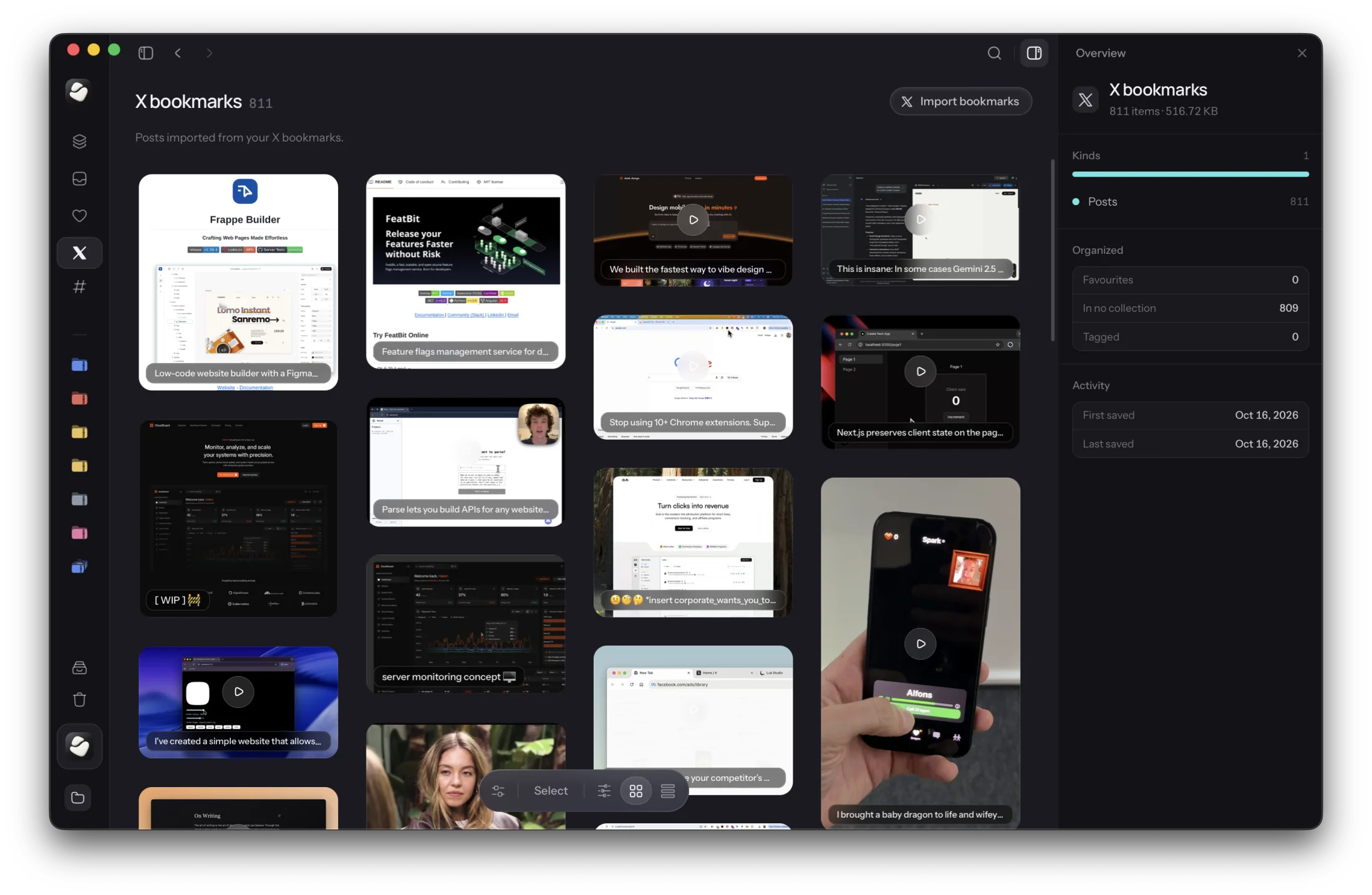
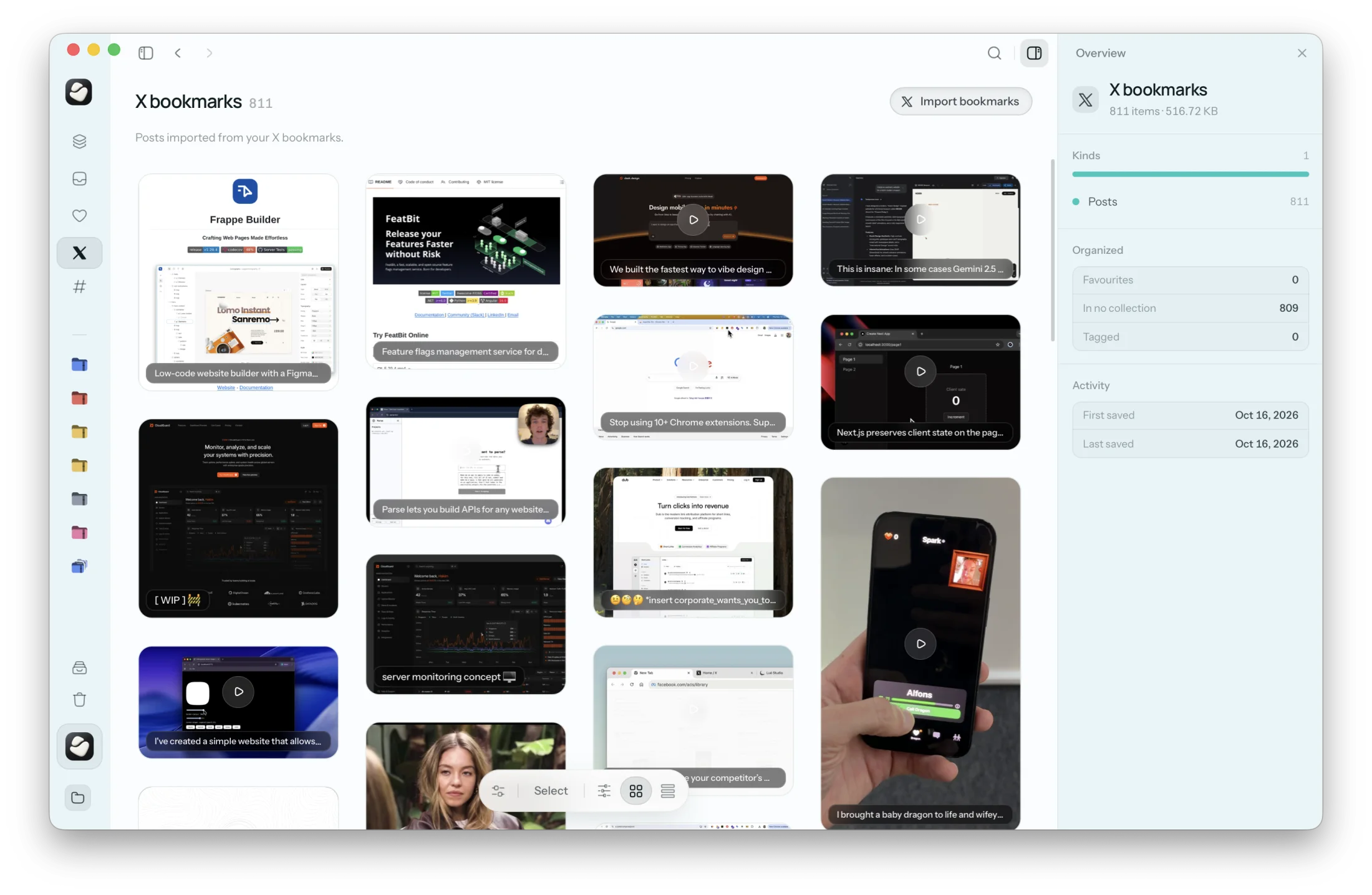
Each post's full text, its author and date, and its photos. Videos and GIFs come across as their cover picture.
Keep it up to date
Once Cavvi for Chrome is installed, bookmarking a post on X saves it to Cavvi straight away. See Save X posts every time you bookmark.
You can also run the import again whenever you like. Cavvi skips the posts it already has.
Questions
Where do the exported bookmarks go?
Into your library on your Mac, with everything else you've saved. See Where your library lives.
How do I stop it?
Close the card in the corner of the X tab.
The import stopped
The card in the X tab says why, such as being signed out of X or X limiting requests for a while. Fix that, then click Retry on the card.
Do imported posts use free saves?
Yes, until Cavvi is activated. See Free saves and licences.