Save · All guides
Save
Save pages, images and X posts from Chrome, Brave, Arc or Edge
Save the page you're on, a picture, some text or a post in one click, with Cavvi for Chrome.
- Mac
- Settings › Integrations
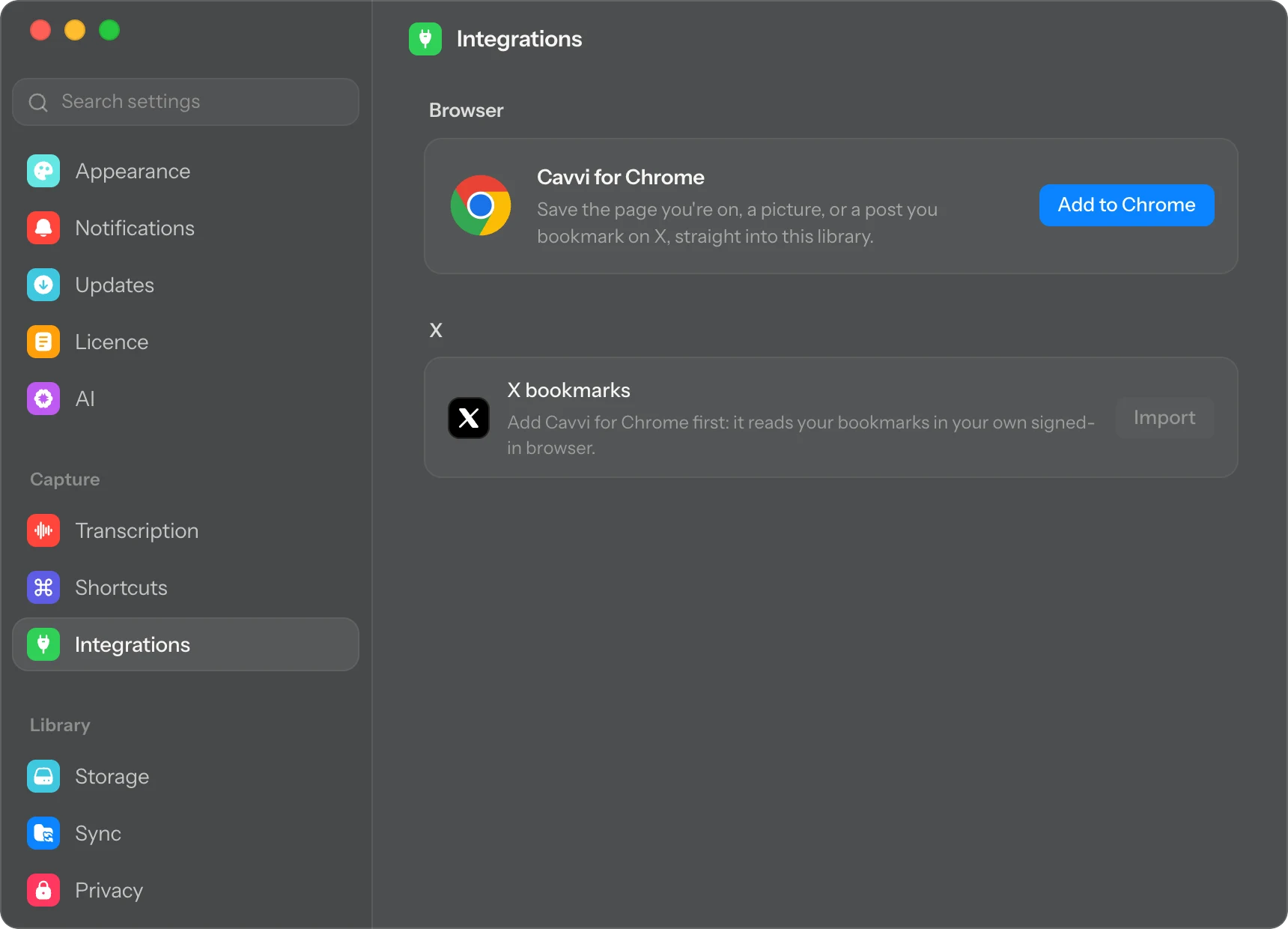
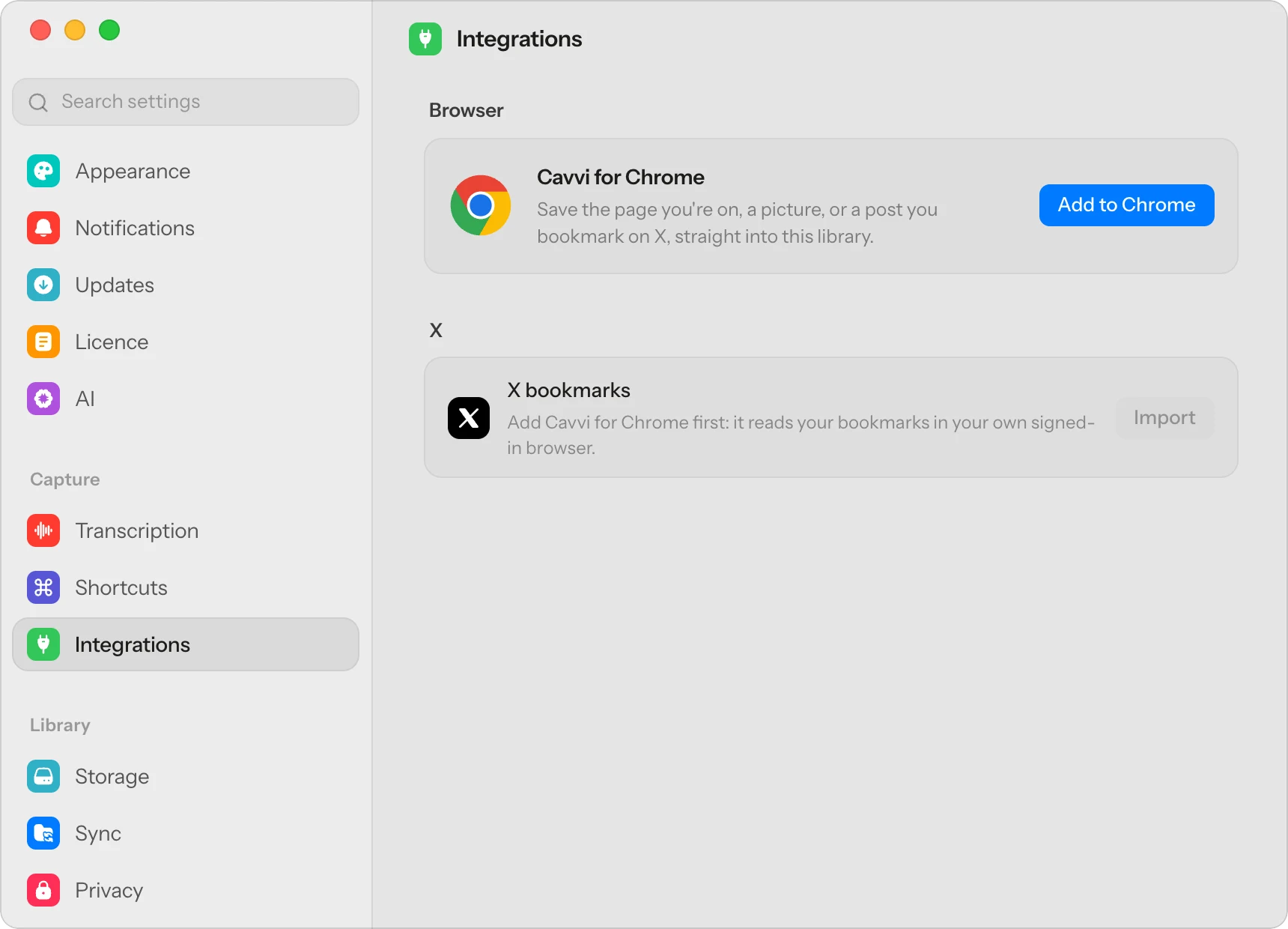
Add the extension
- Open Cavvi once, so your browser can find it.
- Press
⌘,to open Settings and choose Integrations. - Under Cavvi for Chrome, click Add to Chrome, then add it from the Chrome Web Store.
There's nothing to sign in to. Once it connects, Settings shows Installed. It also works in Brave, Arc, Edge and other browsers built on Chrome.
To keep its button in view, pin Cavvi from the puzzle-piece menu in Chrome's toolbar.
Save a page
Click the Cavvi button in the toolbar, or press ⌥⇧S.
A card in the top-right corner says Sending to Cavvi, then Sent to Cavvi. Click its arrow to open the save in Cavvi.

About
Ten principles for good design
Dieter Rams asked of every object he designed whether it was good design. His answers became ten principles, and they still read as fresh as the day he wrote them.
Good design is innovative. It makes a product useful. It is aesthetic, understandable, unobtrusive and honest.

Sent to Cavvivitsoe.com
Save a picture or some text
- Right-click a picture and choose Save image to Cavvi.
- Select some text, right-click it and choose Save as note to Cavvi.
Save a post
On X and Instagram, a Cavvi button sits beside each post's bookmark button. Click it to save the post. On X, bookmarking a post saves it to Cavvi too.
Questions
Does Cavvi need to be open?
No. If it's closed, your saves wait and appear the next time you open Cavvi.
It says Open the Cavvi app once to connect this browser
Open Cavvi on your Mac, then save again. Cavvi connects to your browsers each time it opens.
It says Cavvi didn't answer
Open Cavvi, then click Retry on the card.