
Get started · All guides
Get started
Find your way around on Mac
The sidebar, the inspector and the buttons you'll use most.
- Mac
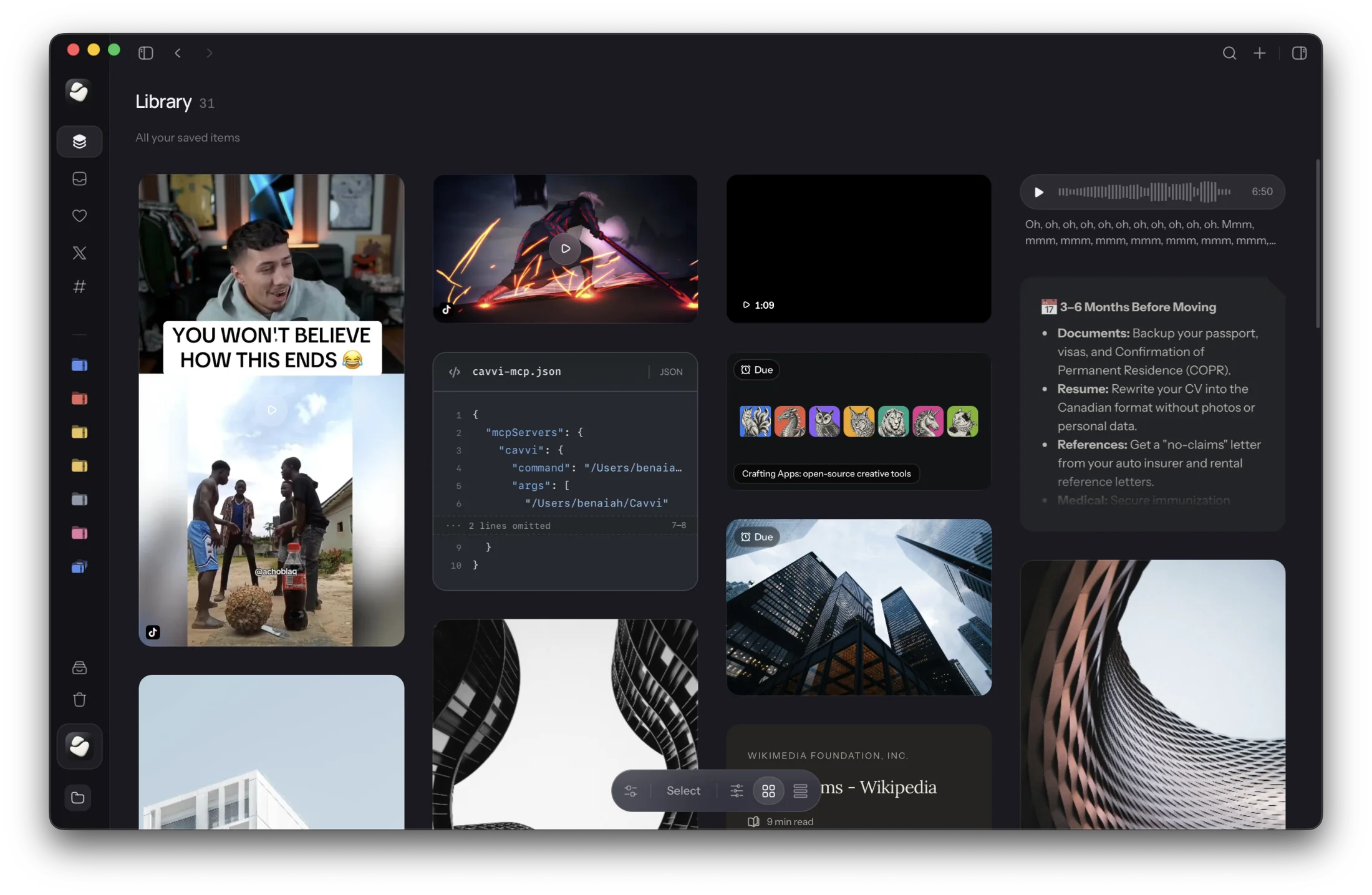
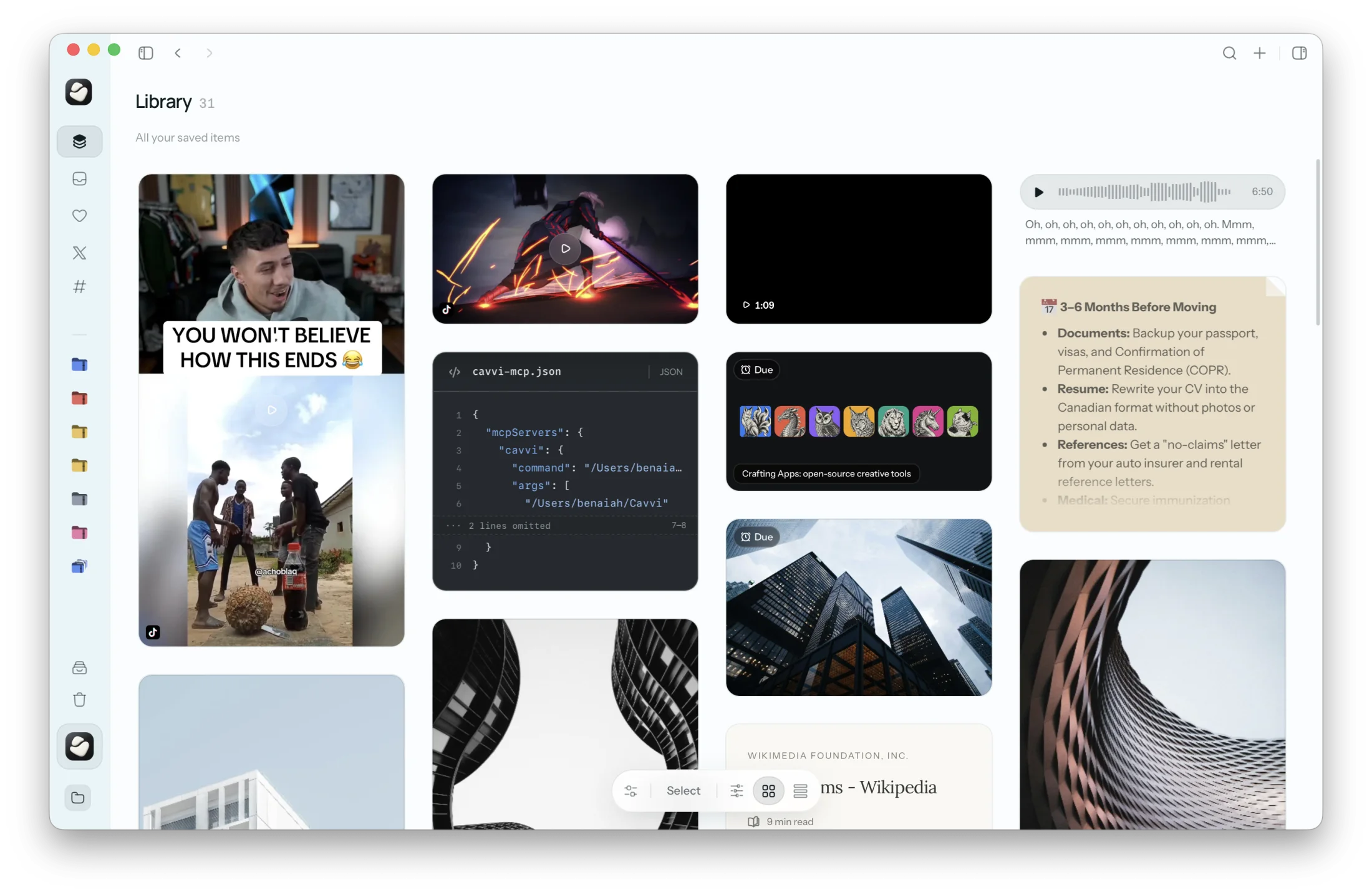
The sidebar
From the top:
- Library has everything you've saved.
- Inbox has saves that aren't in a collection yet.
- Favorites, X bookmarks once you've imported some, and Tags.
- Collections lists the ones you pinned and the ones you used last.
- Archive and Trash sit at the bottom.
Below them, Your library shows how your library is syncing. Click it for Show in Finder, Import from X and Settings.
Press ⌘\ to hide or show the sidebar.
The toolbar
At the top right:
- Search opens the search field.
- + adds a note, link, code, checklist, media or voice note.
- The last button shows or hides the inspector.
⌘Idoes the same.
Items and the inspector
- Click an item to select it. The inspector on the right shows its details, your note, its collections and its tags.
- Double-click an item, or press Return, to open it. Use
←and→for the previous and next item, andEscto go back. - Right-click an item to add it to a collection, tag it, add it to your favorites, set a reminder, archive it or move it to the Trash.
The dock
The bar floating at the bottom of your library holds Filters and View: narrow down what you see, and choose how it's laid out.
The menu bar
Cavvi keeps an icon in the menu bar, even when its window is closed. Use it to start a note, link, checklist or voice note without opening the window. The number beside it is how many items are in your Inbox.